
How to Send a Welcome Email for MyCloud UCaaS Portal Access
1. Click the Users tile

2. Use the search to find desired user then click the blue name to edit OR use the pencil to edit.

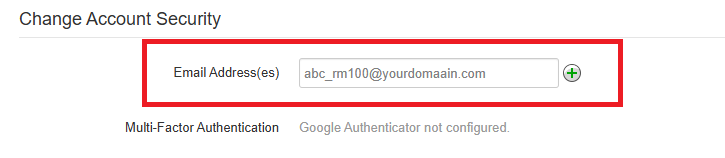
3. Scroll down to Change Account Security and enter the email address. Click Save.
4. Click on the Advanced tab and then click Send Welcome Email.
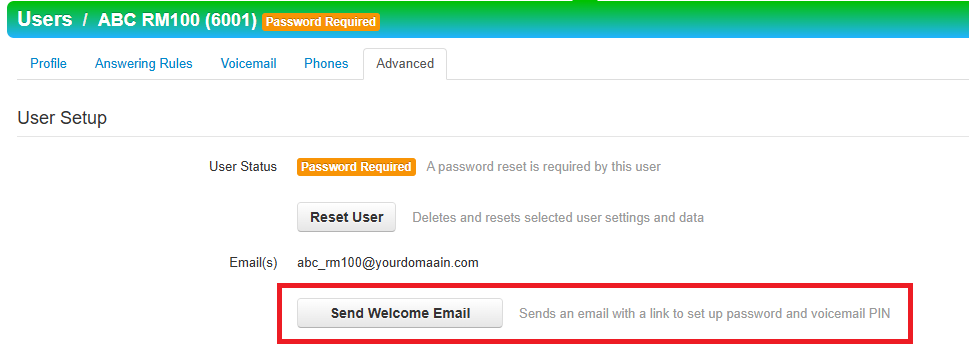
Users have 48hrs to set up credentials for the Portal once they receive the welcome email.
Users MUST have an email entered BEFORE welcome letter can be sent.



Leave a Reply
Want to join the discussion?Feel free to contribute!